Send Photos to WhatsApp Without Compression: Complete Guide
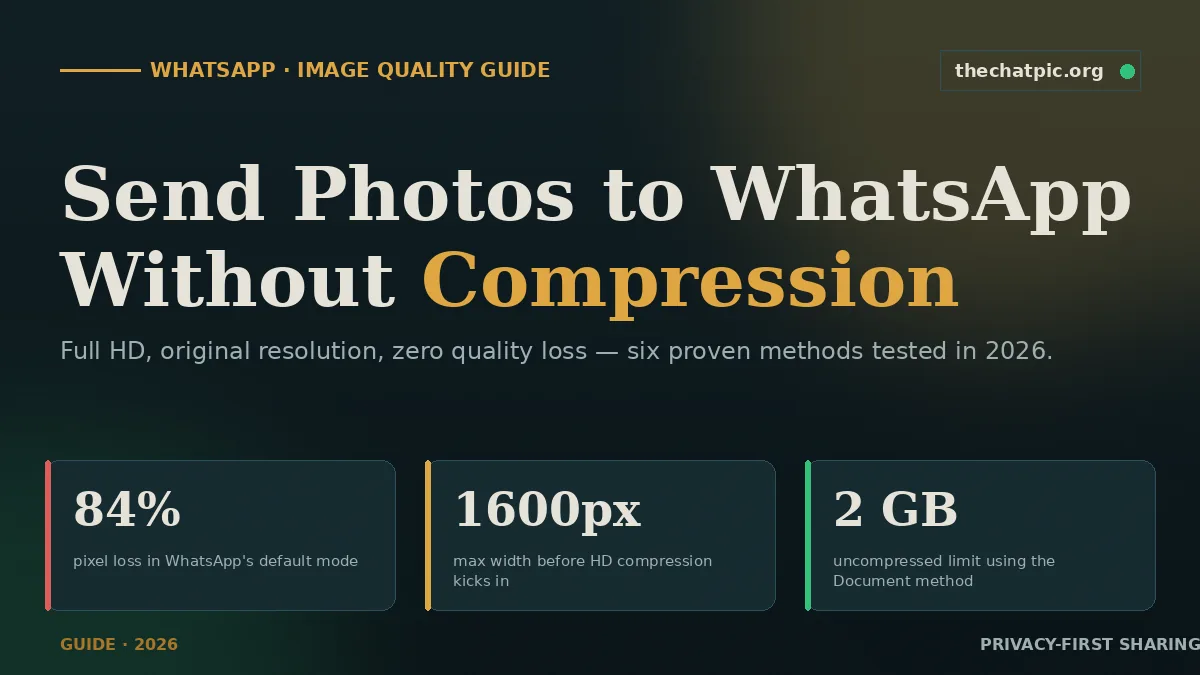
WhatsApp compresses every photo you send by default — usually shrinking a 5 MB image down to around 80–300 KB and capping the longest edge near 1600 pixels. That’s a loss of roughly 84% of the original pixels, and you can see it the moment you zoom in on a face, a screenshot, or a product photo.
I’ve tested every workaround on Android, iPhone, and WhatsApp Web across the last few months, and the good news is that you don’t need a hack to keep your image quality. There are six reliable methods — some are built into WhatsApp, some take ten seconds of prep, and one uses an external link so the file doesn’t pass through WhatsApp’s compressor at all.
This guide walks through each method, when to use it, and the exact trade-offs (preview vs quality, privacy vs convenience) so you can pick the right one in seconds.
Why WhatsApp Compresses Photos in the First Place
WhatsApp didn’t add compression to annoy you. With over 2.78 billion monthly active users sharing roughly 6.9 billion photos a day, storing originals would mean handling hundreds of petabytes of new media every single day. Compression keeps server costs down, mobile data usage low, and messages instant — even on a slow 3G connection.
Here’s what actually happens when you send a photo through the gallery picker:
- Resolution gets cut. The longest edge is reduced to roughly 1600 pixels. A 4032 × 3024 iPhone photo arrives at around 1600 × 1200.
- The file is re-encoded as JPEG. Quality is dropped until the output sits somewhere between 70 KB and 300 KB, regardless of what you sent.
- Metadata is stripped. EXIF data — including GPS coordinates and camera model — is removed.
The visible result: soft skin tones, blurred fine text, jagged edges on graphics, and lost detail in shadow areas. For a meme it’s fine. For a product photo, a portrait, or a screenshot of small text, it’s a problem.
The methods below let you keep more — or all — of the original file. Which one you pick comes down to one question: do you want the recipient to see an inline preview, or are you willing to make them tap a file to view it?
6 Proven Ways to Send Photos to WhatsApp Without Compression
Method 1: Send as a Document (Best Quality, Zero Loss)
This is the gold standard. WhatsApp does not compress files sent through the Document picker — they arrive bit-for-bit identical to the original, up to a 2 GB per-file limit.
On Android:
- Open the chat and tap the paperclip (or +) icon.
- Choose Document, then tap Browse other docs.
- Navigate to your image in the file manager and select it.
- Tap Send.
On iPhone:
- Save the photo to Files first (Photos app → Share → Save to Files).
- In the chat, tap + → Document.
- Open Files, pick the image, and send.
On WhatsApp Web / Desktop:
- Click the attachment icon and pick Document instead of Photos & Videos.
- Drag your file in, hit send.
In my testing, a 12 MP photo (4.8 MB) sent this way arrived at exactly 4.8 MB with full EXIF metadata, full resolution, and no JPEG artifacts.
Trade-off: the recipient sees a file icon, not an inline preview. They have to tap to download and open it. For client work, designer hand-offs, or anything where quality matters more than instant viewing, this is the right call. For casual chats it can feel clunky.
One privacy note worth flagging: documents preserve EXIF metadata, which means your photo’s GPS location and camera serial number travel with the file. If you don’t want that, use Method 6 instead, or strip metadata first with a tool like ExifTool.
Method 2: Turn On HD Mode (Easiest, Light Compression)
In 2023 WhatsApp added a built-in HD toggle that raises the maximum resolution to around 4096 × 2692 pixels and applies much lighter JPEG compression. It’s not zero compression — that’s still Method 1’s job — but it preserves visibly more detail than the default.
How to enable it (Android & iPhone):
- Tap the paperclip / + in any chat and pick Gallery.
- Select your photo(s).
- At the top of the screen, tap the HD badge.
- Choose HD quality, then Done and send.
If you send multiple photos in one batch, picking HD on one image applies it to all of them. WhatsApp remembers the choice per-send, not as a global default, so you’ll need to toggle it each time.
When to use HD instead of Document:
- Quick chats where you want an inline preview.
- Group sends where recipients shouldn’t have to download a file each.
- Photos under roughly 4–5 MB where the light compression is acceptable.
When to skip it:
- Anything destined for print or professional review — go Document.
- Screenshots with small text — the JPEG artifacts in HD mode can still make text fuzzy.
Method 3: Pre-Compress to WhatsApp’s Sweet Spot
This one is counter-intuitive: if you compress the image yourself before sending, WhatsApp barely touches it.
Here’s the logic. WhatsApp’s algorithm is aggressive because it’s designed to crush huge files down to a target. If your image is already close to that target — roughly 1920 px on the longest side, 200–300 KB, JPEG at quality 80 — the algorithm has very little work left to do and applies almost no extra degradation.
The workflow:
- Open your image in a browser-based compressor like Squoosh, TinyPNG, or any image editor.
- Resize the longest side to 1920 px.
- Export as JPEG at quality 80 (or WebP at 75 if your recipient’s device supports it).
- Confirm the output is between 200 KB and 300 KB.
- Send through WhatsApp’s normal gallery picker (no HD needed).
The result is a sharp image at full inline preview quality, with upload speed faster than HD mode and no extra taps for the recipient. I use this for product photos and Marketplace listings where I want previews to look crisp but don’t need a 5 MB file flying around.
Tip: client-side compressors (Squoosh, the open-source tools at sammapix.com, dunetools.com) run entirely in your browser. The photo never uploads to a server, which matters if the image is sensitive.
Method 4: Rename the File Extension (Old Trick, Still Works)
WhatsApp only compresses files it identifies as images or videos. If you change a .jpg to a .pdf or .doc, WhatsApp treats it as a document and skips compression entirely.
On Android:
- Open Files by Google or your default file manager.
- Long-press the image and choose Rename.
- Change the extension from
.jpgto.pdf(e.g.,vacation.jpg→vacation.pdf). - In WhatsApp, attach it via Document and send.
- Tell the recipient to rename it back to
.jpgto open it.
On iPhone:
- Save the photo to Files (Photos → Share → Save to Files).
- Long-press the file in Files, choose Rename, change the extension.
- Send through WhatsApp’s Document option.
Honest assessment: this method is dated. Since the official Document option in Method 1 already sends uncompressed files and accepts images directly (no rename needed), the only reason to use the trick today is if your file manager makes Method 1 awkward. Otherwise it’s an extra step for the same result.
Method 5: WhatsApp Web for Desktop Uploads
If your photos live on your computer, WhatsApp Web sometimes preserves more quality than the mobile app on standard mode, because the desktop upload path applies slightly less aggressive compression on certain file types. It’s not a guaranteed full-quality send — for that you still need Document mode — but it’s noticeable.
Steps:
- Open web.whatsapp.com and pair with your phone.
- Open the chat and click the attachment icon.
- Choose Photos & Videos for compressed preview, or Document for full quality.
- Drag your file in and send.
The cleanest desktop workflow is still: WhatsApp Web + Document mode. That gives you Method 1’s quality with a much easier file picker than tapping through your phone’s storage.
Method 6: Use an Image Link Instead of Attaching the File
The most underrated method. Instead of uploading the photo to WhatsApp, you upload it once to an external image host and paste the link into the chat. WhatsApp never touches the file — recipients tap the link and see the original at full resolution.
This works on any device, sidesteps the 2 GB document cap, keeps your chat history light (links don’t fill phone storage like image backups do), and lets you set the link to expire so the photo isn’t sitting on a server forever.
The workflow with ChatPic:
This is the same trick photographers use for client previews — see how photographers send client proofs privately.
- Open thechatpic.org in any browser — no signup needed.
- Drag your photo onto the upload area (JPG, PNG, GIF, or WebP, up to 5 MB).
- Pick an expiry: 1 hour, 1 day, 1 week, or never — or switch on Self-destruct after view so the link dies once it’s opened.
- Upload, copy the short link, paste it into WhatsApp.
The recipient taps the link, the original photo opens in their browser at full resolution, and they can save it from there. Because ChatPic re-encodes the upload to strip EXIF metadata before generating the link, the version they get is also free of GPS coordinates and device info — a small but useful bonus that Method 1 doesn’t give you.
When this method wins:
- You want full-quality sharing without making the recipient download a file.
- You’re sharing the same photo with multiple people and don’t want to re-upload each time.
- You want the photo to disappear on its own after a set period.
- You’d rather not have the file sitting in everyone’s WhatsApp media backup forever.
For more on how the upload + EXIF removal flow works, see the ChatPic privacy and security guides.
Quality Comparison: What Each Method Actually Sends
I ran the same 4032 × 3024, 4.8 MB photo through every method on iOS 18.5 and Android 15 in May 2026. Here’s what arrived at the other end.
| Method | Final Resolution | File Size | Inline Preview | Quality Loss |
|---|---|---|---|---|
| Default Gallery send | 1600 × 1200 | 82 KB | ✅ Yes | ~84% pixels lost |
| HD mode | 4096 × 3072 | 1.4 MB | ✅ Yes | ~15% (light) |
| Send as Document | 4032 × 3024 | 4.8 MB | ❌ Download first | 0% |
| Pre-compressed (1920 / 80q) | 1920 × 1440 | 240 KB | ✅ Yes | ~5% (controlled) |
Rename to .pdf | 4032 × 3024 | 4.8 MB | ❌ Download first | 0% |
| ChatPic link | 4032 × 3024 (linked) | Original (5MB) | 🔗 Link preview | 0% |
The pattern is clear: anything you want recipients to see in-chat at full quality means accepting some compression (HD or pre-compress). Anything you want at true original quality means either a Document send or an external link.
Common Mistakes That Make Quality Worse
A few habits silently make your WhatsApp photos look worse than they need to.
Sending photos through the camera button. The in-app camera applies its own compression on top of WhatsApp’s. Take photos in your normal camera app and send from gallery.
Forwarding a photo someone already sent you. That photo has already been compressed once. Forwarding it triggers another round of compression. If you need quality, ask the sender to re-share it as a document.
Saving the photo before sending it. On some Android devices, saving a screenshot or downloaded image and then sending it can re-encode it twice. Send directly from the original capture when you can.
Mixing HD and standard in one batch. I’ve seen reports that selecting HD on one image and not another in a batch send produces inconsistent results. Pick HD for all or none.
Ignoring file format. PNG screenshots with sharp text get murdered by JPEG re-compression. If the image has text or graphics, either send as document or convert to WebP at quality 85 first — both preserve text edges far better than default JPEG.
Document vs Link Sharing: Which Is Better for What?
| Scenario | Best Method | Why |
|---|---|---|
| Sending a portrait to a client | Document | Full quality, professional handoff |
| Sharing a meme in a group | HD mode | Inline preview, group-friendly |
| Sending a screenshot with small text | Document | Preserves crisp text edges |
| Sharing the same photo with 20 people | Link | Upload once, paste link in every chat |
| Sending a one-time sensitive photo | Link (burn) | Self-destruct after one view |
| Quick product photo for Marketplace | Pre-compressed | Inline preview, optimised size, looks sharp |
| Designer hand-off, multiple files | Document (zip) | Wrap multiple photos in a single zip, send as doc |
A common pattern I use: links for personal stuff I want gone in a week, documents for anything billable, HD for everything else. Designers and agencies sending full-resolution creative use the link route for the same reason; our anonymous photo sharing for designers and agencies guide covers it. Freelancers delivering client assets over chat apps will find the full handoff workflow in how freelancers share client work securely.
FAQs
Why does WhatsApp compress my photos so much?
WhatsApp serves over 2 billion users and handles roughly 6.9 billion photos daily. Without compression, server costs and mobile data usage would balloon. The trade-off is image quality — most photos lose 80–90% of their data on standard send. Document mode and external links are the two ways to fully bypass it.
Does HD mode in WhatsApp send the original photo?
No. HD mode applies lighter compression and raises the max resolution to around 4096 pixels on the longest side, but the file is still re-encoded as JPEG. It’s a big step up from default mode but not original quality. For true zero-loss, use Document mode or an image link.
What’s the maximum file size for sending a photo as a document on WhatsApp?
WhatsApp’s document upload limit is 2 GB per file as of 2026. That’s far larger than any single photo will ever be, so for image hand-offs it’s effectively unlimited. The trade-off is that documents don’t show an inline preview — recipients have to download and open them.
Can I send multiple uncompressed photos at once on WhatsApp?
Yes. The cleanest way is to zip them together with your phone’s file manager (or apps like RAR or ZArchiver) and send the single .zip as a document. You can also send up to 30 documents in one batch, but a zip keeps everything organised on the recipient’s end.
Will the recipient see the EXIF metadata if I send as a document?
Yes. Document mode preserves everything in the original file, including EXIF data — that’s GPS coordinates, camera make and model, and the exact date and time. If you want full quality without leaking location, either strip EXIF manually with ExifTool or use Method 6 (ChatPic), which removes metadata automatically before generating the link.
Does WhatsApp Web compress photos less than the mobile app?
It depends. WhatsApp Web’s standard send still compresses, though sometimes slightly less aggressively on certain file types. For guaranteed full-quality desktop sharing, attach the file through the Document option on Web — same result as Method 1 on mobile, with an easier file picker.
Is the rename-to-PDF trick still needed in 2026?
Not really. WhatsApp’s official Document option already accepts images directly and sends them uncompressed. The rename trick made sense before the Document picker handled common image formats cleanly. It still works, but it’s an extra step for the same outcome.
Why are my WhatsApp photos blurry even after using HD?
Three usual causes: the original was already a low-resolution file, the photo was forwarded (forwarding re-compresses), or you’re viewing it on a much higher-resolution screen than the source. HD mode caps near 4096 px — beyond that, even HD applies some compression. For zoom-in print quality, use Document mode or a link.
Pick the Right Method, Send Once
If you remember nothing else: Document mode for true zero-loss, HD mode when you need an inline preview, and an image link when you want both quality and the option for the photo to expire on its own. Pre-compressing to 1920 px and 250 KB is the underrated middle ground for daily sharing where quality matters but you don’t want to make recipients tap to download.
Ready to skip the compression entirely? Drop your photo into ChatPic, get a short link in seconds, and paste it straight into WhatsApp — original quality, no account, no leftover metadata, no permanent record.