How to Remove Background from Image Using AI: Complete Guide
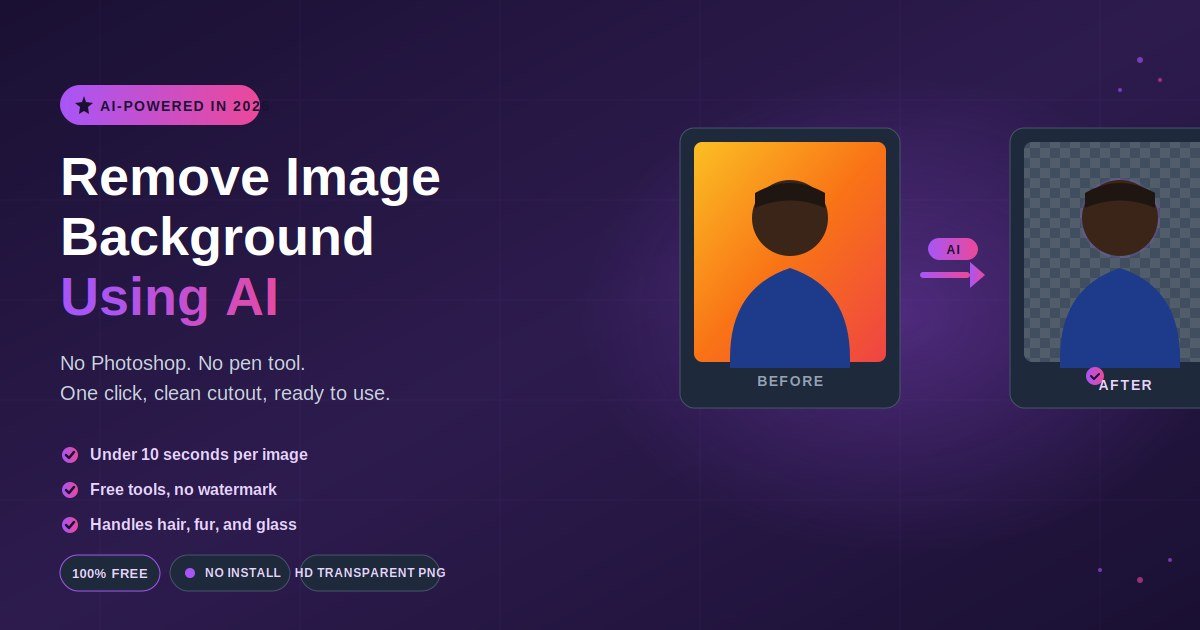
You can remove the background from any image using AI in under 10 seconds: upload the photo to a tool like Remove.bg, Photoroom, or Pixelcut, wait a few seconds, and download a transparent PNG. The AI does all the masking automatically — no Photoshop, no pen tool, no manual tracing.
What used to take 30 minutes of careful edge work in Photoshop is now a one-click operation. Modern AI uses segmentation models trained on millions of images to identify the subject and erase everything else with surprisingly clean edges, even around hair, fur, and glass.
I have tested every major tool on hundreds of product shots, portraits, and tricky subjects. In this guide, I will show you the exact steps, which tool fits which use case, how the technology actually works, where AI still struggles, and the five mistakes that ruin otherwise good cutouts.
How do you remove the background from an image using AI?
Upload your image to an AI background remover, wait 3-5 seconds, and download the result as a transparent PNG. Tools like Remove.bg, Photoroom, Canva, and Pixelcut all do this for free in your browser — no software install, no signup for basic use. The AI handles edge detection automatically.
The reason this works so well in 2026 is that segmentation models have become extremely good at distinguishing subject from background. They can identify a person, a product, a pet, or a plant and mask everything else in one pass.
You do not need design skills, Photoshop, or even a desktop computer. Most tools work on mobile browsers, and several have dedicated iOS and Android apps that match the desktop quality.
The trade-off across free tiers is real: some tools watermark your exports, some cap resolution, and some limit you to a few images per day. Picking the right tool for your use case matters more than the AI quality itself, since the top 5-6 tools are now roughly tied on accuracy.
What are the steps to remove an image background using AI online?
The whole process takes under one minute on any device. Here is the exact workflow that works for nearly every tool:
- Open an AI background remover in your browser. Good free starting points are remove.bg, photoroom.com, pixelcut.ai, canva.com, or adobe.com/express.
- Click the upload button or drag your image into the page. Most tools accept JPG, PNG, and WebP up to a fixed file size (usually 12-30 MB).
- Wait 3-10 seconds. The AI runs server-side segmentation and returns a preview with the background removed.
- Inspect the edges. Zoom in on hair, fingers, and tricky outlines. Most tools let you brush back missing areas or erase leftover background manually.
- Pick your export format. Transparent PNG is standard for layering. Some tools also offer white background, solid color, or custom replacement backgrounds.
- Download. Free tiers often cap export resolution. If you need full size, either use a generous free tool like Pixelcut or pay for one HD download.
For batch jobs — like 50 product photos for an e-commerce store — skip the single-upload flow and look for “batch” or “bulk” upload on the tool’s pricing page. Photoroom, Slazzer, and Remove.bg API all handle this cleanly.
I usually start with Photoroom for a quick check, then move to Adobe Express if the edges need extra refinement. Both are free for the first few images each day.
Which AI background remover is best in 2026?
There is no single winner — the best tool depends on what you are doing. Remove.bg still leads on raw edge quality, Pixelcut wins on unlimited free HD exports, Photoroom is best for mobile and e-commerce templates, Canva is best if you are already designing in it, and Adobe Express handles the trickiest subjects like glass and jewelry.
Here is the side-by-side breakdown I keep bookmarked:
| Tool | Free Tier | Best For | Watermark | HD Export |
|---|---|---|---|---|
| Remove.bg | Limited free previews | Clean edges, API access | No (low-res only) | Paid |
| Photoroom | Generous free use | E-commerce, mobile | No | Limited free |
| Pixelcut | Unlimited free | Volume work, no friction | No | Yes, free |
| Canva | Pro feature | Design workflow | No | Yes |
| Adobe Express | Free with account | Glass, hair, complex | No | Yes |
| Erase.bg | Unlimited standard | High input resolution | No | Standard res |
| PicWish | Daily limits | All-purpose | No | Paid for full HD |
| Clipdrop | Daily credits | Quick mobile cutouts | No | Yes within credits |
A few quick recommendations:
- For one product photo right now: Remove.bg or Photoroom.
- For 50+ images a week with no payment: Pixelcut or Erase.bg.
- For jewelry, glass, or anything with transparency: Adobe Express.
- For social posts and quick edits on phone: Photoroom app or Canva.
- For developers building it into an app: Remove.bg API or open-source RMBG by BRIA AI.
Quality differences between the top tools are now small enough that workflow fit matters more than raw output.
How does AI background removal actually work?
AI background removers use a type of model called image segmentation, trained on millions of labeled photos to learn what counts as foreground (the subject) and what counts as background. When you upload an image, the model predicts a per-pixel mask — essentially deciding for every pixel whether it belongs to the subject or not — then outputs the foreground on a transparent canvas.
The most common models behind these tools are open-source architectures like U2Net, MODNet, InSPyReNet, and BRIA AI’s RMBG. Commercial tools layer their own training data and post-processing on top, which is mainly why edges around hair look noticeably cleaner on premium services.
A quick mental model of what happens between upload and download:
- Segmentation pass: The model assigns each pixel a probability of being subject vs. background.
- Mask refinement: A second model (often called an alpha matting model) cleans up fuzzy areas like hair, fur, and shadows.
- Edge feathering: The final mask is smoothed so the cutout does not look harsh against new backgrounds.
- Compositing: The subject is placed on a transparent canvas or replaced background and exported.
This is why image type matters. A model trained mostly on people will struggle with industrial products; a model trained on e-commerce shots may flatten complex hair. The best tools run multiple specialised models in parallel and pick the best result.
In practical terms: if one tool butchers your image, do not assume “AI cannot do this.” Try a different tool. The same photo can produce wildly different results across Remove.bg, Photoroom, and Adobe Express because their underlying models are trained differently.
What about hair, fur, and transparent objects?
Hair and fur are the classic AI background removal stress test. The best tools — Remove.bg, Photoroom, Clipdrop, and Adobe Express — now handle them well using a technique called alpha matting, which assigns partial transparency to each pixel instead of a hard yes/no decision. That is what makes flyaway strands look natural instead of chopped.
Transparent objects — glass, ice, plastic bottles, wine glasses — are harder because the AI has to decide what is “subject” when you can see through it. A few practical tips:
- Shoot or pick photos with contrasting backgrounds. A wine glass on a dark cloth segments much better than the same glass on a busy kitchen counter.
- Use Adobe Express for tricky subjects. In my testing it handles glass, jewelry, and water droplets noticeably better than the others.
- Manually refine after the AI pass. Most tools let you brush back missed areas with a “restore” tool. Use it for 30 seconds and the result jumps.
- Avoid solid-colour backgrounds that match your subject. A white cup on a white wall will confuse any segmentation model.
For fur on animals, Photoroom and Remove.bg are my top picks. For a person with curly or backlit hair, Clipdrop and Adobe Express edge ahead. None of the tools are perfect on every shot, which is why I keep two or three in my workflow rather than committing to one.
AI vs Photoshop vs manual: which approach should you use?
For 90% of images, AI tools are faster, cheaper, and now nearly as accurate as a careful Photoshop pen-tool job. Use AI as the default, switch to Photoshop only when you need pixel-perfect control on a high-stakes image, and skip manual masking entirely unless you are training your own model.
Here is when each makes sense:
Use AI when:
- You need it done in seconds or batched across many images
- Edges are typical (people, products, animals on normal backgrounds)
- The final image will be viewed on screens, not printed at billboard size
- You do not have Photoshop skills or want to avoid them
- You are working on mobile
Use Photoshop or Affinity Photo when:
- The image is going on a billboard, magazine cover, or other large print
- Transparent or reflective objects are critical
- You need to keep specific shadows or refractions
- The client is paying for pixel-perfect work
- You already work in Photoshop and AI plugins inside it (like Adobe’s Select Subject) give you the best of both
Use manual selection or pen-tool work when:
- The AI consistently fails on a specific shape (rare in 2026)
- You are creating training data for a model
- You are doing fine art or compositing where every pixel matters
The cleanest workflow for most people is AI first, manual touch-up second. Run the image through Remove.bg or Photoroom, then spend 60 seconds brushing back the parts the AI missed. That gives you Photoshop-level results in a fraction of the time.
What are the common mistakes that ruin AI background removal?
Five mistakes quietly wreck otherwise good cutouts: uploading low-resolution source images, ignoring edge artifacts, downloading the watermarked preview by mistake, skipping the manual refinement step, and exporting JPG when you needed PNG.
Mistake 1: Uploading low-resolution source images. AI segmentation works best on sharp, well-lit images at least 1000px on the long edge. If you upload a 400×400 thumbnail, expect mushy edges no matter which tool you use. Always upload the highest-resolution version you have, even if you plan to downscale later.
Mistake 2: Ignoring edge artifacts. Most AI tools leave a faint coloured halo around the subject — leftover pixels from the original background that “bleed” into the mask. Zoom to 200% before exporting. If you see a visible fringe, use the tool’s edge-refinement or decontamination setting before download.
Mistake 3: Downloading the watermarked or low-res preview. Remove.bg, in particular, shows you a beautiful HD preview and then exports a low-resolution version on the free tier. Check the export resolution before you celebrate. If you need HD, either use a tool with free HD exports (Pixelcut, Erase.bg, Canva) or pay for one credit.
Mistake 4: Skipping the 60-second manual refinement. The AI gets you to 95%. Most tools include a brush tool to add back missed areas (a finger, a wisp of hair, an earring) or erase leftover background. Skipping this step is the single biggest reason cutouts look “AI-made” instead of professional.
Mistake 5: Exporting JPG when you needed PNG. JPG does not support transparency. If you export a transparent cutout as JPG, the transparent area becomes solid white — and you lose the entire point of the removal. Always download as PNG or WebP for transparency.
Is it legal and safe to use AI background removers?
For your own photos, yes — every major tool grants you a licence to use the output commercially under their standard free or paid terms. The grey area starts when you upload images you do not own. Always check the rights on stock photos, client work, or scraped images before running them through any AI tool.
A few practical points:
- Your photos remain yours. Reputable tools store uploads for 24 hours at most, then delete them. Read the privacy policy if you handle sensitive imagery.
- Commercial use is usually fine. Remove.bg, Photoroom, Canva, and Adobe Express all permit commercial use of outputs on their free tiers.
- Avoid uploading anything sensitive. Medical scans, ID documents, and private personal photos should be processed locally using open-source tools like RMBG or U2Net rather than uploaded to a third party.
- Faces and likenesses still need consent. AI background removal does not give you the right to use someone’s photo commercially. That is governed by separate privacy and publicity laws.
For most people doing product shots, social media, or personal projects, none of this becomes a real concern. The defaults are safe.
Frequently Asked Questions
Is AI background removal really free?
Yes, several tools offer genuinely free background removal with no watermark — Pixelcut, Erase.bg, and Photoroom all give usable free tiers. Others, like Remove.bg, are free for low-resolution previews but charge for HD exports. The free tier is enough for social media, blog posts, and most everyday work.
Which AI background remover gives the best quality?
Remove.bg, Photoroom, and Adobe Express consistently produce the cleanest edges across portraits, products, and complex subjects. Adobe Express handles glass and jewelry slightly better; Remove.bg leads on hair and fur. For most users the quality differences are small enough that workflow fit and free-tier generosity matter more.
Can AI remove backgrounds from videos too?
Yes. Tools like Runway, Unscreen, and Adobe Express now support AI background removal for video, using the same segmentation models extended to track subjects frame by frame. Quality is impressive on simple subjects but still requires manual cleanup for complex movement or hair detail. Free tiers usually cap video length at 10-30 seconds.
Do I need to install software for AI background removal?
No. Every major tool runs in your browser — desktop or mobile — with no install needed. Dedicated apps exist for Photoroom, Canva, and Adobe Express if you prefer phone-first workflows. The browser experience is identical in quality. Installing software is only worth it if you process hundreds of images a week or need offline processing.
What file format should I export for a transparent background?
Always export as PNG or WebP. Both support transparency, which is what makes a “removed background” actually transparent rather than white. JPG does not support transparency at all — exporting transparent cutouts as JPG turns the empty area into solid white and defeats the entire purpose.
Can AI remove backgrounds from hair, fur, and glass?
Yes, but with varying success. Hair and fur are handled well by Remove.bg, Photoroom, Clipdrop, and Adobe Express using alpha matting. Glass and transparent objects are harder — Adobe Express tends to perform best. For best results, shoot or choose photos with a clear contrast between subject and background.
Are my uploaded images stored or used to train AI?
Policies vary by tool. Most major services delete uploads within 24 hours and state they do not train models on user data, but verification is difficult. If you handle sensitive images, read each tool’s privacy policy carefully, or use an open-source model like RMBG or U2Net locally so nothing leaves your machine.
What is the difference between background removal and background replacement?
Background removal creates a transparent cutout of the subject. Background replacement swaps the original background for a new one — solid colour, gradient, a stock photo, or an AI-generated scene. Most tools offer both. Removal is the harder technical step; replacement is just compositing the cutout onto a new image.
Final thoughts and your next step
AI background removal in 2026 is genuinely a solved problem for most images. Free tools deliver in 5 seconds what used to take 30 minutes of Photoshop work, and the edge quality has caught up with manual masking for the vast majority of use cases.
The right tool depends on your workflow, not on which one has the “best AI.” For quick single edits, Remove.bg or Photoroom. For unlimited free volume, Pixelcut. For tricky transparent objects, Adobe Express. For mobile-first work, Photoroom or Canva.
If you only remember one thing: run the AI pass first, then spend 60 seconds manually refining the edges. That single habit separates amateur-looking cutouts from professional ones, regardless of which tool you use.
Try it now: Open photoroom.com or pixelcut.ai, drop in any photo from your camera roll, and see the result. That five-second test will tell you more than any review can.
Expand your mind with curated content that challenges the ordinary and inspires fresh thinking.