Hide Last Seen on WhatsApp From One Person: Expert Guide
There’s one specific contact you’d rather not have tracking your every WhatsApp move. Maybe it’s an ex, a nosy relative, a coworker, or someone you stopped replying to weeks ago. Hiding your last seen from everyone feels like overkill—you just need privacy from one person.
The good news: WhatsApp has had a built-in setting for this since 2022, and most users still don’t know it exists. After helping dozens of friends and family set this up on both phones and the web app, I’ll walk you through the exact steps to hide your last seen on WhatsApp from one person, what they’ll actually see on their end, the one important trade-off the setting comes with, and how to do the same thing with your online status and profile photo.
Can you hide your last seen on WhatsApp from just one person?
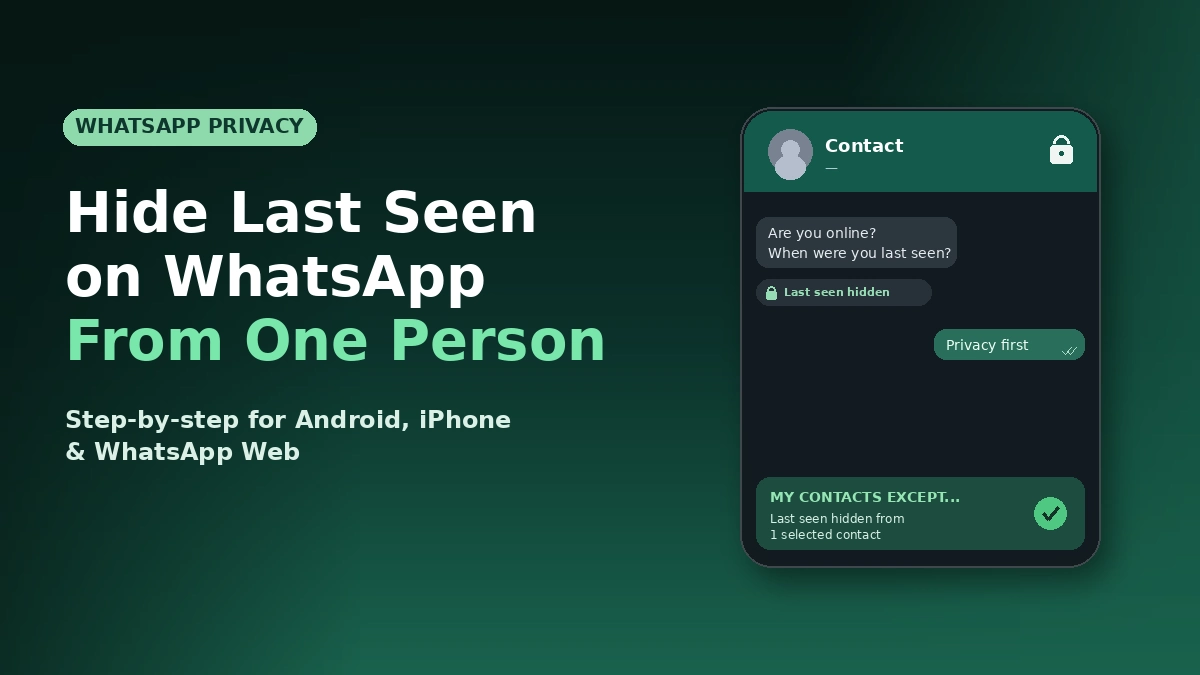
Yes. WhatsApp’s My Contacts Except… option lets you hide your last seen from one specific person—or any group of selected contacts—while everyone else on your list can still see it normally. The setting lives under Settings → Privacy → Last Seen and Online and works the same way on Android, iPhone, and WhatsApp Web.
Three quick facts before you change anything:
- The contact stays in your chat list normally. You can still message them, call them, and see their messages. You’re only hiding your activity timestamp, not blocking them.
- There’s one trade-off. Once you hide your last seen from them, you can’t see their last seen either. WhatsApp enforces this as a reciprocity rule.
- They won’t get a notification. They’ll just notice the timestamp under your name in the chat has gone blank. No alert, no warning, no system message.
The full step-by-step is below for every platform.
How to hide last seen on WhatsApp from one person on Android
Hiding last seen from one specific contact on Android takes about 20 seconds inside the WhatsApp settings menu. The path is identical on every Android phone—Samsung, Pixel, OnePlus, Xiaomi, and any other manufacturer.
Here’s the exact process:
- Open WhatsApp on your Android phone.
- Tap the three-dot menu in the top-right corner of the main chats screen.
- Select Settings from the dropdown.
- Tap Privacy.
- Tap Last seen and online.
- Under “Who can see my last seen,” tap My contacts except…
- Select the contact (or contacts) you want to hide your last seen from. You can pick one or multiple.
- Tap the green checkmark in the bottom-right corner to save.
That’s it. Your last seen timestamp is now hidden from that specific contact, and visible to everyone else on your list as normal. If you want to hide your “Online” status from them too (recommended for full privacy), scroll down on the same screen to “Who can see when I’m online” and tap Same as last seen. This automatically mirrors your last seen settings for online status as well.
How to hide last seen on WhatsApp from one person on iPhone
The iPhone version of WhatsApp uses a slightly different menu layout, but the setting itself is identical. Here’s how to find it.
- Open WhatsApp on your iPhone.
- Tap Settings (the gear icon) in the bottom-right corner.
- Tap Privacy.
- Tap Last Seen and Online.
- Under “Who can see my last seen,” tap My Contacts Except…
- Select the contact you want to hide your last seen from. The radio button next to their name will turn green.
- Tap Done in the top-right corner to save.
Same process, same result. To also hide your online status from that person, return to the previous screen and under “Who can see when I’m online,” tap Same as Last Seen. WhatsApp will now treat both signals as private from that specific contact.
If you don’t see the “My Contacts Except” option, your app is outdated. Open the App Store, search for WhatsApp, and update it. The feature requires a recent app version.
How to hide last seen on WhatsApp Web from one person
WhatsApp Web supports the same privacy settings, which is useful if you do most of your messaging from a computer. The steps are nearly identical.
- Open WhatsApp Web at web.whatsapp.com (or your WhatsApp Desktop app).
- Click the three-dot menu in the top-left corner above your chat list.
- Click Settings.
- Click Privacy.
- Click Last seen and online.
- Under “Who can see my last seen,” select My contacts except…
- Check the boxes next to the contacts you want to hide your last seen from.
- Click the green checkmark to save.
Settings sync across all your linked devices, usually within a few seconds. So changing it once on WhatsApp Web applies to your phone instantly, and vice versa.
What will the person actually see when you hide your last seen?
Most users assume the hidden contact gets some kind of notification. They don’t. WhatsApp keeps the change completely silent on their end. But there are subtle visual cues they may pick up on if they’re paying close attention.
Here’s what changes on their side after you hide your last seen from them:
- The “last seen” timestamp under your name in the chat disappears. Instead of seeing “last seen today at 3:47 PM,” they see only your name with no timestamp.
- If you also hid your online status, the green “online” indicator won’t appear when you’re using the app.
- Your profile photo, About text, and Status updates remain visible unless you also hide those separately under Privacy settings.
- They can still message you, call you, and see your replies normally. Hiding last seen doesn’t affect messaging functionality in any way.
- The two checkmarks (delivered) and blue ticks (read) still work normally, assuming you have read receipts on.
The most common giveaway is that they’ll eventually notice the missing timestamp. If you previously had a visible last seen and it suddenly went blank, that’s the only real signal. There’s no notification, no system message, no audit log. WhatsApp treats privacy changes as confidential.
The reciprocity rule and what else changes when you hide last seen
WhatsApp’s privacy model is built on a strict reciprocity principle: you can only see what others can see of you. This catches most people off guard the first time, so it’s worth understanding before you change the setting.
If you hide your last seen from one person, you can no longer see their last seen either—even if their privacy is set to “Everyone.” The same applies if you hide your last seen from everyone. The setting is mutual by design, and there’s no way around it inside the official app.
Other things to know before you flip the switch:
- The setting only applies going forward. Your last seen from past sessions remains visible to that contact if it was already cached on their device.
- The contact must be saved in your phone’s contacts. “My Contacts Except” only works with people you have saved. To restrict an unsaved number, save them first or change your overall setting to “My Contacts.”
- “Online” and “Typing…” status are partially controllable. Your online status can be hidden via “Same as last seen.” However, “Typing…” cannot currently be hidden from someone who has an open chat with you and is actively viewing it.
- Settings sync across linked devices but may take a few seconds to propagate. If you change the setting on your phone, give WhatsApp Web a moment to catch up.
- The hidden contact can still see your Status, Stories, About, and Profile Photo unless you separately restrict those under their respective privacy menus.
If you want full invisibility from one contact, you’ll need to combine last seen privacy with separate restrictions on Online, Profile Photo, About, and Status visibility. Each lives in its own submenu under Settings → Privacy.
WhatsApp last seen privacy options: a side-by-side comparison
WhatsApp gives you four levels of last seen privacy. Each one fits a different situation. Here’s how they compare so you can pick the right one.
| Option | Who Can See Your Last Seen | Reciprocity (Can You See Theirs?) | Best For |
|---|---|---|---|
| Everyone | Anyone with your number | Yes, you see everyone’s | Maximum visibility (not recommended for privacy) |
| My Contacts | Only saved contacts | Yes, you see contacts’ last seen | Default safe option for most users |
| My Contacts Except… | All contacts except the ones you select | You can’t see last seen of excluded contacts | Hiding from one or a few specific people |
| Nobody | No one | You can’t see anyone’s last seen | Full privacy, social-media-style |
For most people asking “how do I hide my last seen from one person,” My Contacts Except is the right answer. It gives you targeted privacy without sacrificing visibility of anyone else’s last seen. “Nobody” is the right answer only if you want complete invisibility from your entire contact list.
Common mistakes when hiding WhatsApp last seen
This setting is simple, but I see the same handful of mistakes come up. Here’s what to watch for.
Forgetting to also hide online status. If you hide last seen but leave online status on “Everyone,” the contact will still see the green dot when you’re using the app. Always set “Who can see when I’m online” to Same as last seen when you want full privacy.
Hiding last seen from someone whose number isn’t saved. The “My Contacts Except” filter only works on saved contacts. If the person you want to hide from isn’t in your phone book, save their number first. Otherwise the setting has nothing to filter on.
Expecting “Typing…” to be hidden too. The typing indicator is a separate signal WhatsApp doesn’t currently let users restrict. If you’re typing while the contact has your chat open, they’ll see “Typing…” regardless of your last seen settings.
Assuming the change is announced. WhatsApp never notifies anyone about privacy setting changes. If you’re worried about confrontation, this is good news. The change is completely silent. The contact only notices if they actively look at your chat header and see the timestamp missing.
Installing third-party WhatsApp mods to “freeze” last seen. Apps like GB WhatsApp, FM WhatsApp, and YO WhatsApp promise the ability to freeze your last seen at a fixed time. These apps violate WhatsApp’s terms of service and frequently result in account bans, including permanent bans in some cases. Recovering a banned or compromised Meta account is rarely easy—as anyone who’s tried to recover a hacked Facebook account without email access knows—so the safer move is to stick to the official app’s settings.
Forgetting that blocking is a different thing. Hiding last seen is not the same as blocking. The contact can still call you, message you, and see your activity in shared groups. If you want to fully cut someone off, blocking is the right tool. If you just want privacy, last seen restrictions are the right tool.
Hiding everyone’s last seen when you only wanted to hide one person’s. “Nobody” is overkill for most situations. Use “My Contacts Except” so you keep visibility into your other contacts’ last seen while staying private from the one person you care about.
FAQs
Will the person know I’ve hidden my last seen from them?
No. WhatsApp does not send any notification or system message when you change your privacy settings. The only way they could find out is by noticing that the timestamp under your name in the chat is no longer visible. There’s no audit log, no alert, and no way for them to check the setting directly.
Can I hide my last seen from one person but still see theirs?
No. WhatsApp enforces reciprocity. If you hide your last seen from a specific contact, you also lose the ability to see their last seen, even if their privacy is set to Everyone. This is a deliberate design choice and cannot be bypassed inside the official app.
Does hiding last seen also hide my online status?
Not automatically. Last Seen and Online are separate settings in WhatsApp. To hide both, change your last seen to “My Contacts Except…”, then scroll down to “Who can see when I’m online” and select “Same as last seen.” This mirrors your last seen restrictions for online presence too.
Can I hide my last seen from an unsaved number?
No, not selectively. The “My Contacts Except” filter only works on numbers saved in your phone’s contacts. To hide last seen from an unsaved number, either save the number first and then add them to the exception list, or change your overall setting to “My Contacts” so all unsaved numbers are excluded automatically.
If I hide my last seen, can the person still send me messages?
Yes. Hiding last seen only affects the visibility of your activity timestamp. The contact can still send messages, make calls, see your profile photo (unless you also restrict that), view your Status updates, and interact with you normally in groups. Hiding last seen is not the same as blocking.
Will hiding last seen prevent the “Typing…” status from showing?
No. The typing indicator is a separate signal that WhatsApp doesn’t currently let users restrict. If the contact has your chat open while you’re typing, they’ll see “Typing…” regardless of your last seen settings. The only way to avoid this is to not type while they have the chat open.
Can I hide my last seen on WhatsApp Web only, not my phone?
No. WhatsApp privacy settings sync across all linked devices, including WhatsApp Web, WhatsApp Desktop, and any companion devices. Whatever setting you choose applies everywhere. You can’t have one privacy level on your phone and a different one on the web.
Does WhatsApp keep a log of who I’ve hidden my last seen from?
Yes, but only for you. The list of excluded contacts is stored in your privacy settings and only visible to you. You can return to Settings → Privacy → Last Seen and Online → My Contacts Except… at any time to see the current list and add or remove people. The hidden contacts themselves have no way to see this list.
Final thoughts
Hiding your last seen on WhatsApp from one specific person is one of the simplest privacy moves you can make, and it’s one of the most underused settings in the app. The whole process takes about 20 seconds: open Settings, tap Privacy, tap Last Seen and Online, select My Contacts Except, pick the contact, save. Done.
For full privacy from that person, repeat the process for online status (Same as last seen), profile photo, About, and Status updates—each in their own submenu. Combined, these settings make you effectively invisible to that contact while still appearing normally to everyone else on your list. If you also manage a public-facing presence on Meta’s other platforms, it’s worth understanding how privacy choices interact with reach—our breakdown of why Instagram reach is dropping in 2026 covers the algorithm shifts most creators are still working around.
Just remember the reciprocity trade-off: hiding their visibility into your activity also hides their activity from you. If that’s a fair trade for the peace of mind, the setting is one of the best privacy tools WhatsApp has ever shipped. And the best part—no one ever has to know you used it.
Knowledge that works for you—dive into our problem-solving resources and see real results.