How to Take a Screenshot on HP Laptop: Complete Guide
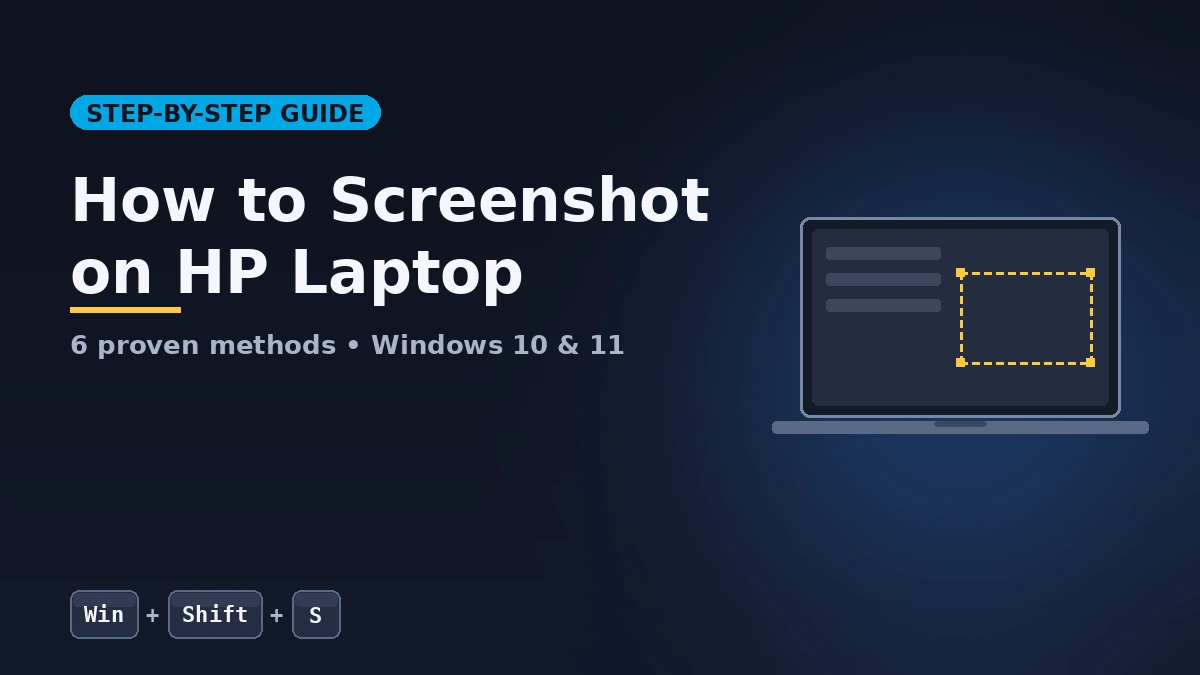
The fastest way to take a screenshot on an HP laptop is to press Windows + Shift + S, drag a box around the area you want, and paste it anywhere with Ctrl + V. That single shortcut covers most real-world needs, but HP laptops actually ship with six different screenshot methods built into Windows.
After capturing thousands of screenshots across HP Pavilion, Envy, EliteBook, ProBook, and Omen models, I have tested every shortcut, every Snipping Tool mode, and every workaround for when the Print Screen key refuses to cooperate.
This guide shows exactly which method to use for each situation, where Windows actually saves your files, and how to fix the Print Screen key when it stops working — no third-party apps required.
What Is the Fastest Way to Take a Screenshot on HP Laptop?
The fastest way to take a screenshot on an HP laptop is pressing Windows + Shift + S. This opens the Snipping Tool overlay, lets you drag-select any region, and copies the image to your clipboard instantly. Paste with Ctrl + V into any app — Word, email, chat, image editor — without saving a separate file.
For a full-screen capture saved automatically, press Windows + PrtScn instead. The screen dims for a moment, and a PNG file is saved to Pictures → Screenshots without any extra step.
Most HP laptops running Windows 10 or Windows 11 support both shortcuts out of the box. The Print Screen key is usually located in the top-right area of the keyboard and may be labeled PrtSc, PrtScn, or PrntScrn.
How Do You Take a Screenshot on HP Laptop Using Keyboard Shortcuts?
You take a screenshot on an HP laptop using keyboard shortcuts by pressing one of four key combinations: PrtScn copies the full screen to the clipboard, Windows + PrtScn saves a full-screen PNG, Alt + PrtScn captures the active window, and Windows + Shift + S opens a drag-to-select tool. Each shortcut serves a different purpose.
Here is the exact step-by-step for each method.
Method 1: Press Print Screen to Copy the Full Screen
- Locate the PrtScn key in the top-right area of your HP keyboard.
- Press PrtScn once. Nothing visible happens, but Windows copies the entire screen to the clipboard.
- Open Paint, Word, Outlook, or any image-friendly app.
- Press Ctrl + V to paste the screenshot.
- Save the file as PNG or JPG from the app’s menu.
If pressing PrtScn alone does nothing, your HP keyboard likely has Fn Lock enabled. Press Fn + PrtScn instead.
Method 2: Press Windows + PrtScn to Save Automatically
- Press Windows + PrtScn at the same time.
- The screen briefly dims to confirm the capture.
- Open File Explorer and navigate to Pictures → Screenshots.
- Your file appears as Screenshot (1).png, Screenshot (2).png, and so on.
This is the cleanest method when you need to save several screenshots in a row without pasting them anywhere first.
Method 3: Press Alt + PrtScn to Capture Only the Active Window
- Click anywhere inside the window you want to capture so it becomes active.
- Press Alt + PrtScn together.
- The active window image is copied to the clipboard.
- Paste it into any app with Ctrl + V.
This is perfect for documentation — you get just the app, no taskbar, no background clutter, no other windows in the frame.
Method 4: Press Windows + Shift + S for the Snipping Overlay
- Press Windows + Shift + S anywhere in Windows.
- The screen dims and a small toolbar appears at the top with four icons.
- Pick Rectangular Snip, Freeform Snip, Window Snip, or Full-screen Snip.
- Drag (or click) to select your area. The image goes to the clipboard.
- Click the notification banner in the bottom-right corner to open Snipping Tool, annotate, and save.
This is the single most useful screenshot shortcut on modern HP laptops. It works the same on Windows 10 and Windows 11.
How Do You Screenshot Specific Areas or Windows on an HP Laptop?
To screenshot specific areas or windows on an HP laptop, use the Snipping Tool app or the Windows + Shift + S shortcut, both of which let you draw a custom selection, capture a single window, or trace a freeform shape. The Game Bar (Windows + G) handles game and video captures, and Microsoft Edge has a built-in scrolling screenshot tool for long web pages.
Here is a comparison of every native HP screenshot method, what it captures, and where the file ends up.
| Method | Shortcut | What It Captures | Where It Goes |
|---|---|---|---|
| Print Screen | PrtScn | Full screen | Clipboard only |
| Save Full Screen | Windows + PrtScn | Full screen | Pictures → Screenshots |
| Active Window | Alt + PrtScn | Current window only | Clipboard only |
| Snipping Tool Overlay | Windows + Shift + S | Region you choose | Clipboard + notification |
| Snipping Tool App | Open from Start menu | Region + delay timer + edit | You choose folder |
| Game Bar Capture | Windows + G | Active game or app | Videos → Captures |
| Edge Web Capture | Ctrl + Shift + S in Edge | Full webpage (scrolling) | Downloads or clipboard |
Use the Snipping Tool App for Advanced Captures
- Press the Windows key and type Snipping Tool.
- Open the app and click New (or press Ctrl + N).
- Choose your mode from the dropdown: Rectangle, Window, Full-screen, or Freeform.
- Set a Delay of 3, 5, or 10 seconds if you need to capture a menu or hover state.
- Take the snip, annotate with the pen and highlighter tools, then click the save icon.
The delay feature is the one most users miss. It is the only built-in way to capture a right-click context menu or any UI element that disappears when you move the mouse.
Use the Game Bar to Capture Games and Videos
- Press Windows + G to open the Game Bar overlay.
- Click the Capture widget (camera icon).
- Click the camera icon for a screenshot or the record button for video.
- Files save to Videos → Captures.
Game Bar also captures regular desktop apps. It is genuinely useful for recording short how-to clips without installing any third-party screen recorder.
Capture Full Scrolling Web Pages in Microsoft Edge
- Open the webpage in Microsoft Edge.
- Press Ctrl + Shift + S or right-click the page and choose Web capture.
- Pick Capture full page.
- Edge scrolls the entire page and produces one long image.
- Save it to your computer or copy it to the clipboard.
For long articles, receipts, or chat logs, this is the cleanest scrolling-screenshot solution that ships free with every HP laptop.
HP Tablets and 2-in-1 Convertibles
If you are using a touchscreen HP laptop in tablet mode without a keyboard, press and hold the Power button + Volume Down button for about two seconds. The screen flashes, and the screenshot saves to Pictures → Screenshots, the same place as the keyboard shortcut.
This is the only method that works reliably when the keyboard is detached or folded behind the screen.
What to Do When Print Screen Does Not Work on HP Laptop?
When the Print Screen key does not work on an HP laptop, the most common causes are an active Fn Lock, an outdated keyboard driver, OneDrive intercepting screenshots, or Print Screen being remapped to the Snipping Tool in Windows 11 settings. Each problem has a fix that takes under a minute.
Here are the most common issues, ranked by how often I see them on real HP laptops.
Fix 1: Toggle Fn Lock On or Off
Many HP laptops ship with Fn Lock enabled, which makes the function-row keys behave as media keys (volume, brightness, airplane mode) instead of standard F1–F12. This also affects the Print Screen key on some models.
- Look for a small Fn Lock indicator on your Esc key.
- Press Fn + Esc to toggle it off.
- Try PrtScn again.
If that does not help, try Fn + PrtScn as a direct combination. Either approach should restore the key.
Fix 2: Update the Keyboard Driver
- Right-click the Start button and open Device Manager.
- Expand Keyboards, right-click your keyboard entry, and choose Update driver.
- Pick Search automatically for drivers.
- Restart your laptop after the update finishes.
For HP-specific drivers, visit HP Support Assistant (already installed on most HP laptops) and run a driver scan. While you are in driver territory, a full Windows 11 speed-up tune-up covers every other performance fix worth running on an HP laptop.
Fix 3: Check If OneDrive Is Redirecting Screenshots
OneDrive can auto-save screenshots to the cloud instead of the local Screenshots folder, which makes them look like they have disappeared.
- Right-click the OneDrive icon in the system tray.
- Open Settings → Backup.
- Look for Automatically save screenshots I capture to OneDrive and toggle it off if you want local saves.
- Your future screenshots will return to Pictures → Screenshots on the laptop itself.
Fix 4: Use Print Screen to Open Snipping Tool
On Windows 11, the Print Screen key can be reassigned to open the Snipping Tool overlay instead of copying the full screen. If this is what you want:
- Open Settings → Accessibility → Keyboard.
- Find Use the Print screen key to open screen snipping.
- Turn it on.
Now pressing PrtScn opens the snipping overlay directly — often faster than Windows + Shift + S because it is a single key.
Common Myths That Waste Time
Myth: You need a third-party app to take screenshots on HP laptops. False. Every native shortcut above ships with Windows. Tools like ShareX, Lightshot, or Snagit add features (cloud upload, scrolling capture for desktop apps, faster annotation), but they are not required for normal screenshot use.
Myth: Screenshots taken with PrtScn are automatically saved. False. Plain PrtScn only copies to the clipboard. You must paste and save manually. Use Windows + PrtScn if you want automatic saving.
Myth: Different HP models need different shortcuts. Mostly false. The shortcuts above work the same on Pavilion, Envy, EliteBook, ProBook, Stream, Spectre, and Omen. The only real variation is whether you need to add the Fn key, which depends on the Fn Lock setting, not the model.
Which Screenshot Method Should You Actually Use?
The best screenshot method on an HP laptop depends entirely on what you plan to do with the image afterwards. Quick paste into a chat or email needs a clipboard shortcut. Documentation work needs an automatic save. Tutorials need annotation. Pick the method that matches the end goal, and you will stop fumbling between shortcuts.
Here is the decision-making logic I have settled on after years of daily use.
For Quick Paste-and-Send (Chat, Email, Slack)
Use Windows + Shift + S. Drag a tight box around exactly what you want, switch to your messaging app, and press Ctrl + V. No file, no folder, no cleanup needed afterwards. This is the right answer 70 percent of the time for normal office work.
For a Library of Reference Screenshots
Use Windows + PrtScn. Every press creates a numbered PNG in Pictures → Screenshots. Perfect for capturing receipts, error messages, design references, or anything you want to find again next month. The files are easy to sort, rename, and back up — including before-and-after shots if you are working through the steps in our guide on how to speed up a Windows 11 laptop and want to document the changes.
For Documentation and Tutorials
Open the Snipping Tool app and use the delay timer. Annotate with arrows, numbered steps, and highlights inside the same window. Save with a clear filename to a folder of your choice. This is the workflow professional technical writers use, and it ships free on every HP laptop.
For Recording Screen Actions, Not Still Images
Press Windows + G to open Game Bar and use the record button. Despite the name, it works on any app — browsers, Office, video calls — not just games. Saves to Videos → Captures as MP4. For short walkthrough clips, this beats installing OBS or any paid recorder.
For Long Web Pages
Use Microsoft Edge and Ctrl + Shift + S → Capture full page. The output is a single tall PNG you can scroll through or share. If you need the same for a desktop app instead of a webpage, ShareX is the free third-party tool worth installing — but for browser content, Edge already covers it.
Frequently Asked Questions
Where are screenshots saved on HP laptop?
Screenshots taken with Windows + PrtScn are saved automatically to C:\Users\YourName\Pictures\Screenshots. Game Bar captures save to Videos → Captures. Snipping Tool screenshots save wherever you choose during the save dialog. Plain PrtScn and Alt + PrtScn save nothing to disk — they only copy to the clipboard until you paste.
How do I take a screenshot on HP laptop without Print Screen key?
Press Windows + Shift + S to open the Snipping Tool overlay. You can also open the Snipping Tool app from the Start menu and click New. On touchscreen HP convertibles in tablet mode, press and hold Power + Volume Down for two seconds. All three methods work without ever touching the Print Screen key.
Why is my Print Screen key not working on HP laptop?
The most common cause is Fn Lock — press Fn + Esc to toggle it, then try again. If that fails, try Fn + PrtScn as a combination. Other causes include outdated keyboard drivers, OneDrive intercepting screenshots, or Print Screen being reassigned to open the Snipping Tool in Windows 11 Accessibility settings.
How do I take a scrolling screenshot on HP laptop?
Windows does not include scrolling screenshots for desktop apps. For webpages, open Microsoft Edge, press Ctrl + Shift + S, and choose Capture full page. Edge scrolls the entire page automatically and produces a single long image. For non-browser apps, you need a third-party tool such as ShareX, PicPick, or Snagit.
How do I take a screenshot of just one window on HP laptop?
Click inside the window you want to capture so it becomes the active window, then press Alt + PrtScn. Only that window is copied to the clipboard. Paste with Ctrl + V into any app. Alternatively, press Windows + Shift + S and choose the Window Snip option from the top toolbar.
Does HP have its own screenshot tool?
No, HP does not ship a separate first-party screenshot app on its laptops. All screenshot functionality comes from Windows itself — Print Screen, Snipping Tool, Windows + Shift + S, and Game Bar. These work identically across all HP models. HP Support Assistant focuses on drivers and diagnostics, not screenshots.
How do I take a screenshot on HP laptop and edit it before saving?
Press Windows + Shift + S to capture your snip, then click the notification banner that appears in the bottom-right corner. The Snipping Tool opens with the image ready for annotation — pen, highlighter, ruler, crop, and shapes. Save with Ctrl + S when finished. You can also open the Snipping Tool app directly for the full editing interface.
Can I take a timed screenshot on HP laptop?
Yes. Open the Snipping Tool app from the Start menu, click the Delay dropdown, and choose 3, 5, or 10 seconds. Click New and the timer starts. This is the only built-in way to capture menus, tooltips, or hover effects that disappear when you click. Useful for tutorials and documentation.
Final Takeaways
Most HP laptop users only need two shortcuts. Windows + Shift + S covers any custom area or window. Windows + PrtScn handles full-screen captures that save automatically to your Pictures folder.
Keep the Snipping Tool app pinned to your taskbar for delay-timer captures and quick annotation. Open Microsoft Edge when you need a long scrolling webpage in one image. Use Game Bar (Windows + G) for short screen recordings.
If a screenshot ever seems to fail, the fix is almost always the Fn Lock toggle, an updated keyboard driver, or OneDrive quietly redirecting the file. Try Windows + Shift + S first, then Windows + PrtScn, and you will have a working screenshot on any HP laptop within seconds.
Feed your mind with purpose—explore hand-selected posts that inspire smarter decisions.