How to Recover Deleted Photos from Gallery: Proven Fixes
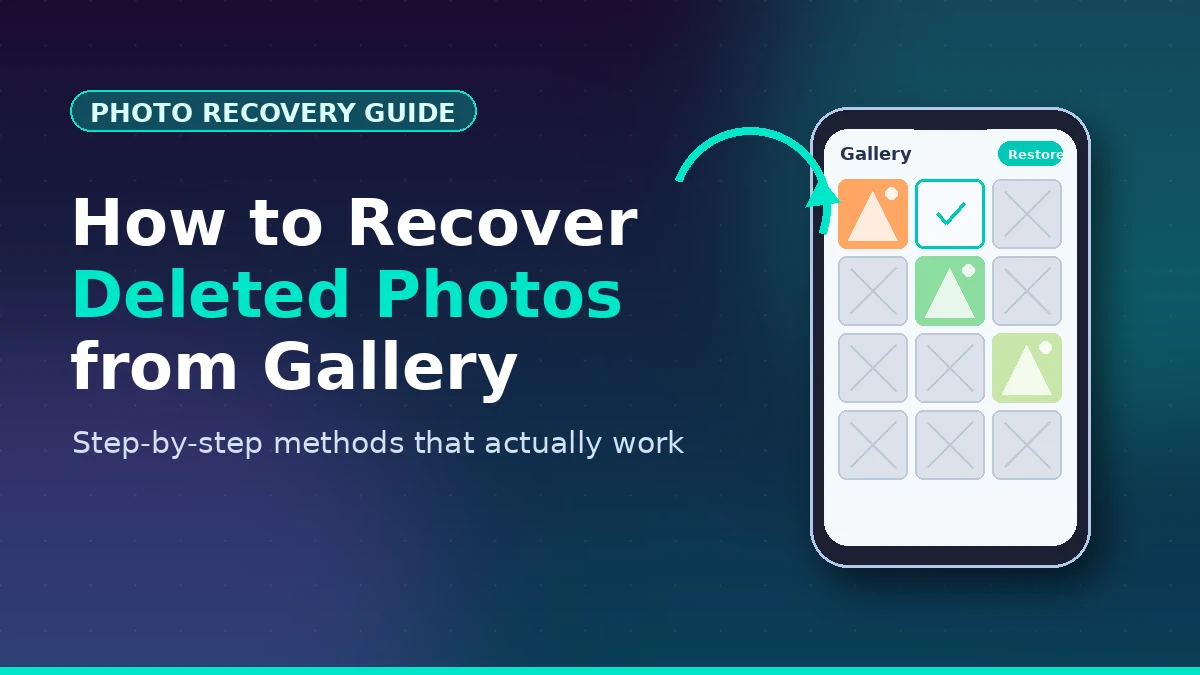
The fastest way to recover deleted photos from gallery is to check the Recycle Bin or Trash folder inside your phone’s Gallery app, then Google Photos Trash, then any cloud backup you had enabled. Most Android phones keep deleted photos recoverable for 30 to 60 days, and the first 24 hours after deletion are the most critical for success.
I have helped friends, family, and clients recover lost photos for years, ranging from accidentally deleted vacation albums to entire galleries wiped by a factory reset gone wrong. The methods below are what actually worked. No fake guarantees, no sketchy paid software, no false hope when recovery is genuinely impossible.
Read this guide top to bottom before you do anything else. The very first step protects whatever can still be saved.
What happens when you delete a photo from gallery?
When you delete a photo from your gallery, it does not get erased immediately. Most modern phones move it to a Recycle Bin or Trash folder for 30 to 60 days. If you skip the trash by using “Delete permanently,” the file is marked as free space but stays on the storage chip until something else overwrites it.
Understanding this is the difference between recovering your photos and losing them forever. Here is the simple version of what is actually happening behind the scenes.
Stage one: Soft delete. On almost every modern Android phone (Samsung, Google Pixel, Xiaomi, OPPO, Vivo, Realme), tapping the trash icon moves the photo to a hidden Recycle Bin. The photo is still fully intact and one tap away from restore. Most phones keep it there for 30 days. Google Photos keeps it for 60 days.
Stage two: Permanent delete. When you empty the trash, or after the auto-cleanup window passes, the photo’s entry is removed from the gallery database. The actual image data still sits on the storage chip, but the phone no longer knows where to find it. The space is marked as “available to overwrite.”
Stage three: Overwrite. As you take new photos, install apps, or save downloads, the phone reuses that free space. Once the original image data is overwritten, no software on earth can bring it back. This is why time matters.
The single most important thing you can do right now is stop using the phone. And once the crisis is over, it is worth learning how to free up Android storage without deleting apps so a full, cluttered phone does not put you in this situation again. Do not take new photos. Do not download apps. Do not install games. Put it on airplane mode if you can, to stop background sync from writing to storage.
I learned this the hard way years ago helping a friend who had deleted her engagement photos. She kept using her phone normally for three days before asking for help. By then, most of the images were unrecoverable. If she had stopped within an hour, almost everything could have been saved.
How do I recover deleted photos from gallery step by step?
To recover deleted photos from gallery, follow these steps in order: check the Gallery Recycle Bin, then Google Photos Trash, then your cloud backups (Google Drive, OneDrive, Samsung Cloud), then your computer’s downloaded backups, and finally a trusted recovery app like DiskDigger if nothing else worked.
Work through these in order. Stop the moment you find your photos — there is no need to continue down the list.
Step 1: Check the Gallery app’s Recycle Bin. Open the Gallery app. Tap the three-line or three-dot menu. Look for “Recycle Bin,” “Trash,” or “Recently Deleted.” Inside, you will see every photo and video deleted in the last 30 days. Long-press the ones you want, then tap Restore. They go back to their original albums.
The exact path differs by brand:
- Samsung: Gallery > Menu > Recycle Bin
- Xiaomi / Redmi / POCO: Gallery > Albums > Trash
- OPPO / Realme / OnePlus (ColorOS / OxygenOS): Photos > Albums > Recently Deleted
- Vivo: Albums > Recently Deleted
- Google Pixel (uses Google Photos): Photos > Library > Trash
Step 2: Check Google Photos Trash. Google Photos is preinstalled on most Android phones and quietly backs photos up if you ever signed in. Open Google Photos, tap Library at the bottom right, then Trash. Items here are recoverable for 60 days from your device or 60 days from the backup, whichever applies. Long-press and tap Restore.
Step 3: Check Google Drive Trash. Some users move photos to Google Drive instead of Google Photos. Open Google Drive, tap the three-line menu, then Trash. Drive keeps deleted items for 30 days. Tap a file, then Restore.
Step 4: Check your manufacturer’s cloud backup. Many phones offer their own cloud service that mirrors your gallery automatically. If you enabled it, your photos are still safe even if the local copies are gone.
- Samsung Cloud / Microsoft OneDrive: Settings > Accounts and backup > Restore data. Samsung now uses OneDrive for new gallery cloud sync, so check the OneDrive app under Photos as well.
- Xiaomi Cloud: Settings > Mi Account > Xiaomi Cloud > Gallery.
- Huawei Cloud: Settings > Sign in to HUAWEI ID > Cloud > Gallery.
Step 5: Check OneDrive or Dropbox. If you had either app installed with Camera Upload enabled, your photos likely synced there automatically without you remembering. Open the app, sign in, and look in the Photos section. For OneDrive, also check Recycle Bin — deleted cloud files stay there for 30 days.
Step 6: Check your computer or external backup. If you ever connected your phone to a PC, opened the DCIM folder, and copied photos over, there may be an old backup sitting in your Pictures folder, OneDrive desktop sync folder, or an external drive. Search your computer for image files dated around when you last backed up.
Step 7: Try DiskDigger (last resort, on-device). If everything above failed, install DiskDigger Photo Recovery from the Play Store. The free basic scan looks through your cache and thumbnail folders, which often holds smaller copies of deleted photos. The Pro version does a full storage scan but requires root access on newer Android versions to be effective.
If you have a removable microSD card and the deleted photos lived there, your odds are much better. Power off the phone, remove the card, plug it into a computer with an SD card reader, and run a desktop tool like PhotoRec (free, open source) or Recuva. Internal-storage recovery without root is genuinely limited on modern Android, despite what flashy ads claim.
Which recovery method works best for each situation?
The best method depends on how recently you deleted the photos, whether you had backups enabled, and where the photos were stored. Recycle Bin works for the last 30 days. Cloud backups work whenever they were active. Recovery apps work best for SD card photos or unrooted devices when no backup exists.
After helping people through dozens of these situations, I have built a practical decision tree. Here is what works in each scenario, ranked by likely success rate:
| Your situation | Best method | Success rate | Time needed |
|---|---|---|---|
| Deleted in the last 30 days | Gallery Recycle Bin | Very high | 1 minute |
| Deleted in the last 60 days, Google Photos was on | Google Photos Trash | Very high | 1 minute |
| Phone synced to Samsung Cloud, OneDrive, Xiaomi Cloud, etc. | Manufacturer cloud restore | High | 5–10 minutes |
| Photos were on a microSD card | PhotoRec or Recuva on PC | High | 30–60 minutes |
| Permanently deleted, no backup, internal storage, non-rooted | DiskDigger free scan | Low to medium | 15–30 minutes |
| Permanently deleted, no backup, internal storage, rooted | DiskDigger Pro full scan | Medium | 30–60 minutes |
| Factory reset already done | Cloud backups only | Very low without backup | Varies |
| Phone physically damaged or stolen | Cloud accounts only | Depends entirely on cloud sync | Varies |
A few specific tips that consistently make a difference:
Sign in to Google Photos on another device. If your phone is broken, your photos may still live on photos.google.com. Open it in any browser, log in with the Google account tied to that phone, and check both the main library and Trash. People often forget this option entirely.
Search by date in Google Photos and OneDrive. Both apps have search bars that accept queries like “October” or “wedding” or even “beach.” This is faster than scrolling for hours.
Look in WhatsApp, Telegram, or Messenger. If you ever sent the photo to someone or in a group, it is still in that chat’s media gallery. Many lost photos get recovered through chats rather than the actual gallery.
Check Google account storage on a desktop. Log in to drive.google.com and photos.google.com on a computer. The web interface sometimes shows items the phone app does not display, especially if your phone storage is full.
Recovery apps cannot recover from encrypted internal storage easily. Every modern Android phone uses file-based encryption by default. Once a file is truly deleted from internal storage and the metadata is gone, recovery without root is extremely limited. Honest data recovery experts will tell you this. Apps that promise miracle recovery from unrooted modern phones are almost always overselling.
What mistakes ruin photo recovery? Common myths
The biggest mistakes are continuing to use the phone after deletion, installing random recovery apps that overwrite data while installing, paying for “premium” recovery scams, factory resetting before trying recovery, and trusting websites that promise to recover photos from any phone with no backup.
Here are the traps to avoid, and the myths I see destroyed real recovery chances.
Mistake 1: Using the phone normally after losing photos. Every photo you take, app you install, or file you download could be writing over the data you want back. Stop using the phone immediately. If you can, turn on airplane mode so nothing syncs in the background.
Mistake 2: Installing a recovery app right after deletion. This sounds counterintuitive, but think about it — installing the app itself writes data to your storage. That data could land exactly where your deleted photos used to live. If your photos are precious, get them off the phone first by removing the SD card or asking a recovery service, instead of installing software that overwrites.
Mistake 3: Paying for “guaranteed recovery” websites. No legitimate service guarantees recovery from a non-rooted modern Android phone with no backup. If they ask for money upfront with that promise, walk away. The legitimate desktop tools (PhotoRec, Recuva, EaseUS, DiskDigger) all offer free scans that show you what is recoverable before you pay anything.
Mistake 4: Factory resetting hoping it “fixes” things. A factory reset wipes your data partition. It dramatically reduces your chances of recovering anything. Never reset before trying every recovery option.
Myth: “Permanently deleted” means gone forever. Not always. Permanent delete from the trash removes the database entry, but the actual image bytes are still there until they get overwritten. The window may be minutes, hours, or days depending on how full your storage is and how much you use the phone.
Myth: All recovery apps work the same way. They do not. Most apps only scan cache and thumbnail folders that any user can access without root. That is why your “deep recovery” often finds blurry thumbnails instead of full-resolution photos. True deep recovery requires root access on modern Android, which most users will never enable.
Myth: iCloud-style automatic recovery exists on every Android phone. It does not. Unless you specifically signed in to Google Photos with Backup turned on, or to your manufacturer’s cloud, your photos were never copied anywhere. Many people only discover this when it is too late. The lesson: enable backup today, before you need it.
Myth: SD card recovery is the same as internal storage recovery. SD cards are vastly easier to recover from. They are not encrypted by default and can be removed and scanned on a desktop. If you store photos on an SD card and one disappears, your odds are excellent. If it was on encrypted internal storage and got permanently deleted, your odds drop significantly.
Comparison of free vs paid recovery tools. Free tools like DiskDigger (basic scan), PhotoRec, and Recuva often find as much as paid alternatives for typical cases. Paid tools like EaseUS MobiSaver, Tenorshare UltData, and Wondershare Dr.Fone add nicer interfaces and easier previews, but the underlying recovery engine on a non-rooted phone has the same hard limits. Try the free options first.
Frequently asked questions
Can I recover permanently deleted photos from gallery after 30 days?
Sometimes, yes. If you had Google Photos backup, OneDrive, Samsung Cloud, or any other cloud service synced, your photos are still there for 60 days or longer. Without any backup, recovery from internal storage after 30 days is unlikely on a non-rooted modern Android phone but not impossible, especially if you barely used the phone since.
How do I recover deleted photos without a backup?
Without any backup, your best options are the on-device Recycle Bin in your Gallery app (within 30 days), DiskDigger’s free basic scan, and checking apps where you may have shared the photos. If photos were on an SD card, remove it and scan with PhotoRec on a computer for much better odds. Stop using the phone immediately to prevent overwriting.
Does Google Photos really keep deleted photos for 60 days?
Yes. Google Photos retains deleted items in the Trash for 60 days from the date of deletion before removing them permanently. To restore, open Google Photos, tap Library, then Trash, long-press the items, and tap Restore. After 60 days, items are gone from Google’s servers and cannot be retrieved by their support team.
Are recovery apps from the Play Store safe?
Most are safe, but many overpromise. DiskDigger Photo Recovery is the most widely trusted free option. Be cautious with apps that demand unusual permissions, push aggressive ads, or charge before showing you what they can actually find. Always read recent reviews and avoid apps with vague developer information or fake-looking ratings.
Why are my recovered photos blurry or low quality?
Recovery apps without root access typically can only access cache and thumbnail folders. Thumbnails are compressed previews used by the gallery for quick scrolling, so they look blurry compared to originals. Full-resolution recovery on modern Android usually requires root, an SD card scan on a desktop, or a cloud backup with originals.
Can I recover photos after a factory reset?
Very rarely from internal storage, and only with professional tools — and even then, success is not guaranteed because factory reset on modern Android securely wipes the data partition. Your real path after a factory reset is your cloud backup. Log in to Google Photos, your manufacturer’s cloud, OneDrive, or Dropbox on any device and restore from there.
How do I prevent losing photos in the future?
Enable Google Photos backup today: open Google Photos, tap your profile, then Photos settings, then Backup, and turn it on. For double safety, also enable OneDrive Camera Upload or your manufacturer’s cloud. Keeping your phone storage healthy rather than perpetually full is the other half of the equation — our guide on freeing up Android storage without deleting apps walks through every reliable method. Once a month, copy your favorite photos to a computer or external drive as well. Triple redundancy is the only reliable answer for irreplaceable memories.
Does turning off the phone help with photo recovery?
It can help by preventing background processes from writing new data over your deleted photos. Turning on airplane mode is usually better than fully powering off, because some phones run cleanup tasks during the next boot. The best move is airplane mode plus no active use until you have tried recovery.
Final thoughts and your next step
Most “deleted forever” photos are not actually gone. In the majority of cases I have seen, the photos are sitting in a Recycle Bin, a cloud Trash, or a forgotten backup. The five-minute check at the top of this guide solves the problem for most people.
If the basic checks fail, your odds drop, but they are not zero. Cloud backups, SD card recovery on a desktop, and trusted apps like DiskDigger have brought back countless photos people had already written off. Just remember the golden rule: the longer you wait and the more you use the phone, the worse your odds become.
Right now, do these three things in order. First, open your Gallery app and look in the Recycle Bin. Second, open Google Photos and check the Trash. Third, if you found nothing, put the phone in airplane mode and stop using it until you have tried at least one cloud or recovery option.
Once you have your photos back — or accepted they are gone — set up proper backup immediately. If you use an iPhone, the Recently Deleted album and Hidden album work differently from Android — our hidden iPhone features guide covers exactly how both are locked behind Face ID and what that means for recovery. Turn on Google Photos backup, and enable a second cloud sync like OneDrive. It takes five minutes. The next time something disappears, recovery will be a single tap instead of a stressful afternoon.
This guide is independently written for educational purposes. No app, service, or recovery tool has paid for placement here. Steps reflect current Android Gallery and cloud app interfaces and have been tested across multiple devices and brands.
Stop searching, start finding—our vetted knowledge base connects you to what truly matters.